The Delta Executor Key is the code you must enter before the app starts. Many users get stuck here because the key page loads slow or shows checks that do not finish. If this keeps happening to you, the good news is that these problems are easy to fix once you know the right steps.
I have seen the same issues on Android, iOS and Windows, and the solutions are simple. In this guide, you will learn how to get your key, how to fix the errors that stop you, and how to open the key page the right way so it works on the first try.
Take a moment and follow the steps. You will get your key without confusion and you will know how to stop these problems from coming back.
What Is the Delta Executor Key?
The Delta Executor Key is a simple check that the app uses before it runs. You enter the key to show that your copy of Delta is real and safe to use. After the key is accepted, the app opens and you can run your scripts without any blocks.
The key page may look complex, but the idea behind it is very basic. The app sends you to a page, you follow a few steps, and the page gives you the key at the end. When the key is correct, Delta starts. If the steps are not done in order or the page does not load right, the key will not show up. This is why many users see loops, long waits or blank screens.
Why Delta Uses a Key System
Many Roblox executors use a verification method to:
- Avoid automated misuse
- Reduce spam access
- Handle updates safely
- Keep the tool stable for active users
Understanding this helps you avoid mistakes during the process.
How to Get the Delta Executor Key
You can get the Delta Executor Key by opening the key page and following a short set of steps. The process is the same on all devices, but some screens look a bit different on Android, iOS and Windows. When you follow the steps in order, the key shows up at the end and Delta unlocks without errors.
Below are clear steps for each device.
Get the Delta Key on Android
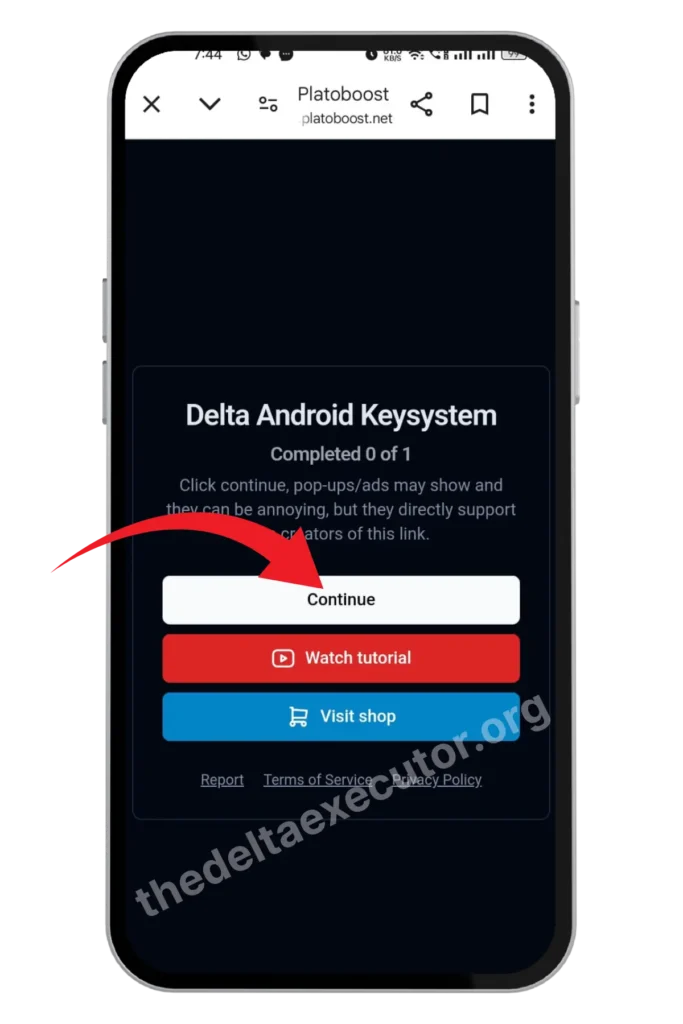
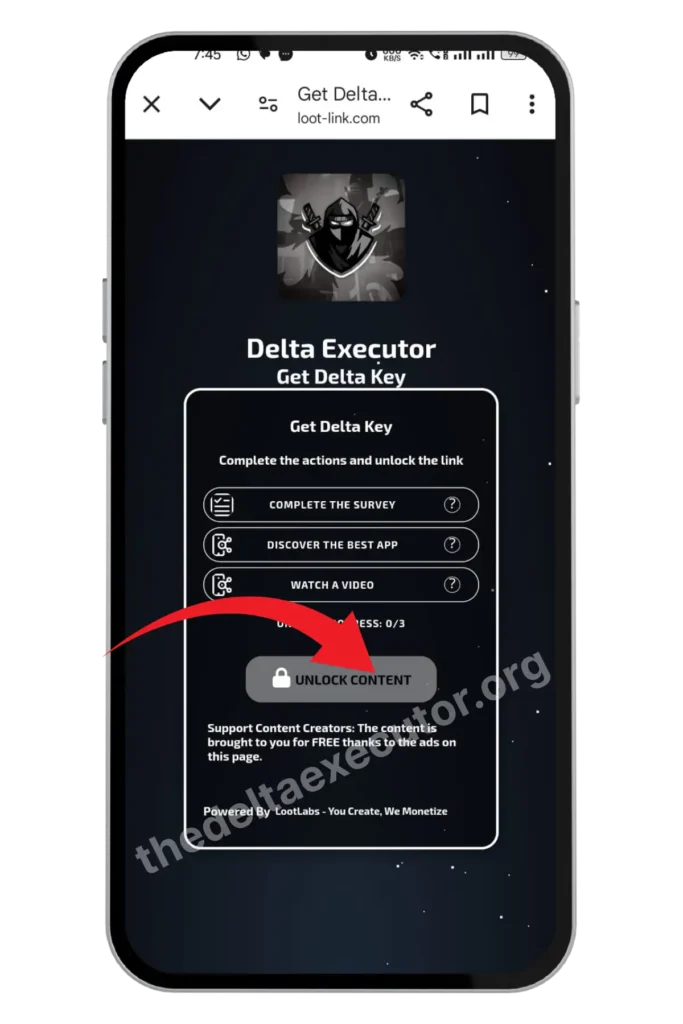
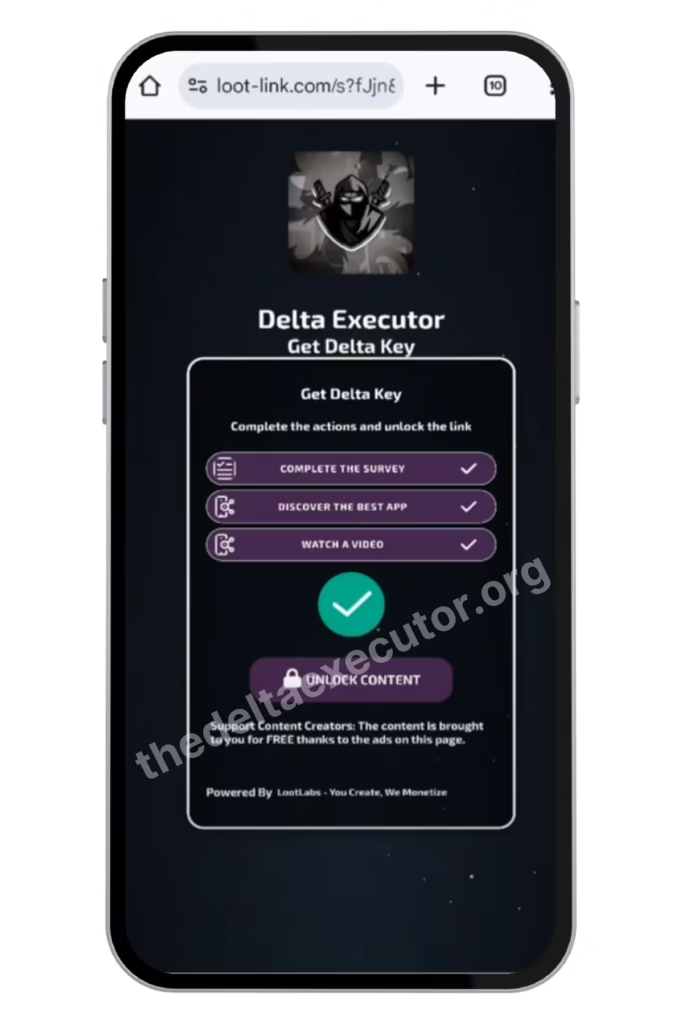
- Download the Delta executor android from the thedeltaexecutor.org. Open the app once so it can register.
- Then open Roblox search for your favourite game and join that game.
- Keep the game running in the foreground. Because the key links to your active session.
- Go back to Delta and tap the button named Receive Key or Get Key.
- The app copies a short link to your clipboard. You do not need to type anything.
- Open Chrome and paste the copied link in your browser. Do not open the link inside Telegram, Discord, or other apps.
- Use Chrome or Safari only. It will open into a new window ‘Delta Android Keysystem’. Click Continue.
- The page asks you to complete one or two small actions. Click the small question marks if shown. Do each action slowly. Do not install extra apps or enter personal details.
- Wait until the page shows the success marker, usually a green tick or a confirmation line.
- After the page confirms, tap any button that says Continue or Create. The site shows the key. Tap Copy to copy the code.
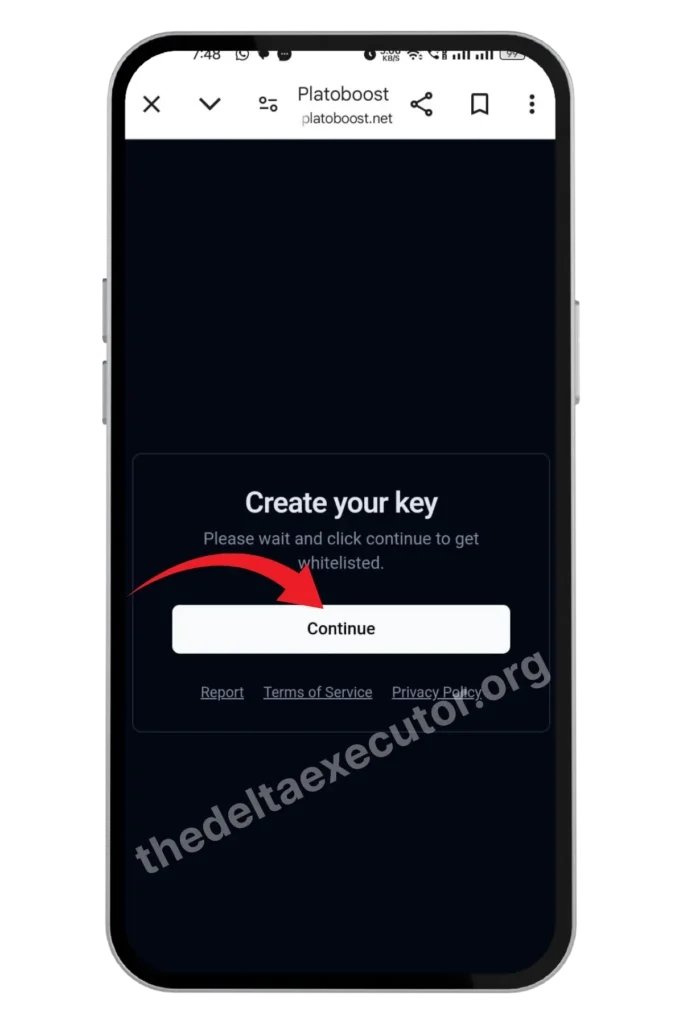
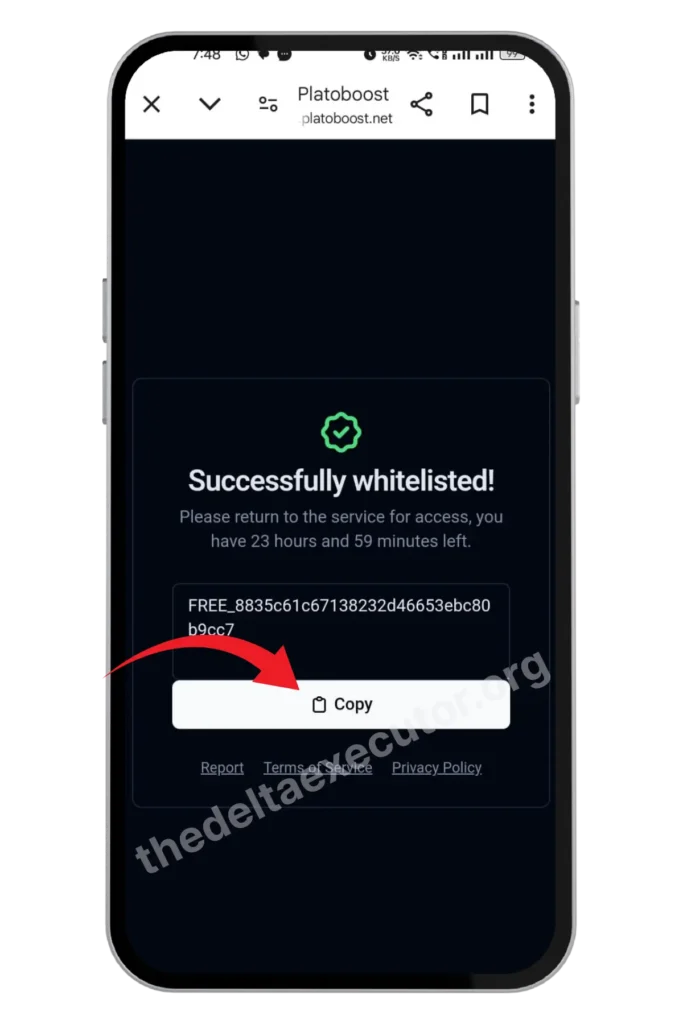
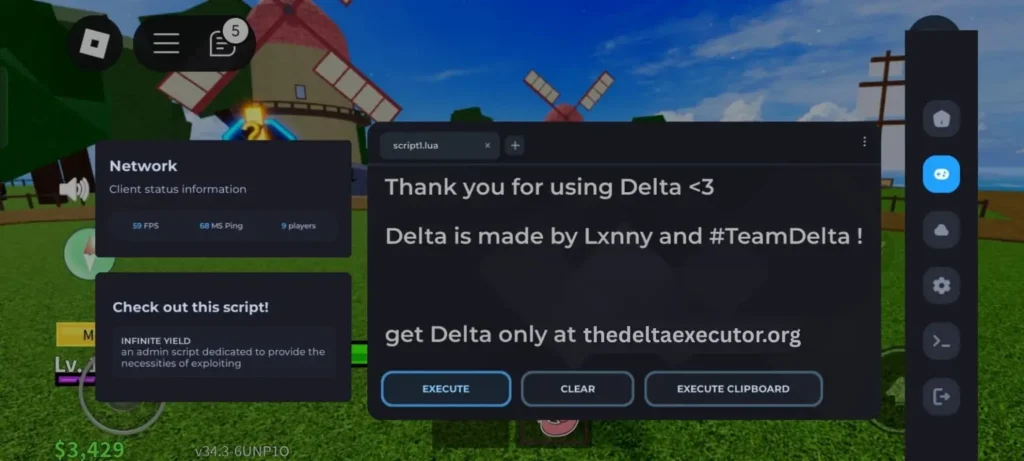
Now return to the Delta app. Paste the key into the key field and press Continue or Verify. The app shows success if the key matches your session. After verifying key, open Delta, press Attach or Inject, and wait for the success message. Paste a script or choose one from the roblox games scripts and press Execute.
If the page reloads or freezes, it means the checks didn’t finish. If the key shows Invalid, or nothing happens, repeat steps 3 through 7 using the same browser and network. You can fix this in the error section later in this guide.
How to get the Delta Executor key on IOS?
The key process on iPhone and iPad is almost the same as Android. You install Delta, press Receive Key, open the link in Safari, complete the small steps, and paste the key back into Delta.
Here’s the step-by-step:
- Step 1: Download Delta on IOS from this official site. Once it’s installed, open the app once to register.
- Step 2: Now start Roblox, search for your favourite game and join any game. Leave it running in the background.
- Step 3: In Delta, tap Receive Key. This copies a link to your clipboard.
- Step 4: Now open Safari and paste the copied link into it. Always use Safari on iOS, not Chrome, not Discord browser.
- Step 5: Safari will open the key page (usually Linkvertise). Follow the 2–3 tasks, like clicking a button or scrolling. Don’t install shady apps or enter personal details. Wait until the Unlock Content button turns green.
- Step 6: Once the tasks are done, tap Continue → Create. Your Delta key will appear. Tap Copy.
- Step 7: Paste the copied key in Delta and press Continue. If it’s correct, Delta will unlock and you can attach it to Roblox.
- Step 8: After the key works, hit Inject in Delta, paste a script, and press Execute and enjoy your game.
Extra tips for iOS users
Use these tips to make it work smoothly:
• Use Safari only
• Allow pop ups
• Keep one tab open
• Turn off private mode
• Reload the page if it freezes
Delta Executor on PC – Why It’s Keyless
If you’re using Delta on Windows, you don’t need a key at all. The PC version is completely keyless.
Because:
- On mobile (Android & iOS), the key system is used to stop clones and keep the app free.
- On PC, Delta works in a different way. It injects directly into Roblox using DLL attach methods. Because of this, it’s more stable and doesn’t rely on a browser key system.
- That means when you install Delta Executor on your computer, you can run it, attach it to Roblox, and start executing scripts instantly. No ads, no tasks, no waiting.
For many players, this is the biggest reason they prefer using Delta on PC instead of mobile. It saves time and avoids the hassle of generating a new key every 24 hours.
So if you’re tired of dealing with Linkvertise and pop-ups, the PC version is the smoothest way to go.
How to Bypass Delta Executor Key?
A bypass is a simple way to open the key page when the main link does not load. It does not skip the key. It only helps you reach the page through another path. You can do this through three common methods. Each one follows the same idea but uses a different link path.
Methods you can use for a bypass:
Delta Executor Key Not Working
Many users get stuck during the key check. Most of the time, the page does not load the right way or the checks do not finish. Each issue comes from a simple cause, and you can fix it with a small change on your device.
Below are the most common problems and how to fix them.
1. Whitelist Stuck or Not Updating
If the whitelist page confirms but Delta still doesn’t unlock:
- Close Delta fully
- Reopen the app
- Tap “Check Key” again
- Avoid switching screens while it verifies
This usually solves the sync problem.
2. Infinite Loading
If the page keeps loading without progress, try these fixes:
- switch to a different network
- use mobile data instead of Wi-Fi
- refresh only after waiting at least 10–15 seconds
- close all background apps
- check the time and date on your device
Incorrect device time or rapid app switching often causes this issue.
3. Validation Required Please Enter the Key
This shows up when Delta does not read the final key.
Fix: Copy the key again and place it back in the app. Make sure you do not add any spaces by mistake.
4. Key Page Not Loading
The page may not open when your network blocks scripts.
Fix: Switch to a steady network or turn off the tool that is blocking the steps. After that, open the key link again.
5. Delta Key Shortcut Not Working
Saved links can break over time.
Fix: Open the key page from inside Delta to get a fresh path. This clears old or expired links.
Fix for Android
Android stores old browser data. Clear your browser cache, close the tabs, and open the key link again. Use Chrome if your default browser has issues.
How to Get Delta Keys Without Waiting
There is no instant skip for the Delta key. The key appears only when the steps finish the right way. You can make it faster by keeping the page clean and letting it load without breaks.
Here are simple tips:
• Use a fresh link from inside Delta
• Keep one tab open only
• Clear your old browser data
• Use a steady network
• Turn off blockers for a short time
These small changes help the key show up faster.
Frequently Asked Questions
Why Delta Executor Needs a Key
The key helps Delta confirm that your copy is real. It also stops people from using changed files that can break the app. When you complete the steps on the key page, Delta sees that you are using the correct files. This is why the app opens only when you finish the check. If the key is missing, the app will not start.
Why is my Delta Executor key not working?
The key will not work if the page did not finish its checks. Open the link again from Delta, clear your browser data, and follow each step without switching tabs.
Why does the key keep asking again?
This happens when the app cannot read the final code. Copy the key again with no extra spaces and place it in the app one more time.
How long does the Delta key last?
The key works until the app needs to confirm your files again. When the app updates or resets, it may ask for a new key.
Can I get the key without tasks?
No. The tasks must finish or the page will not show the key. You can speed the checks by keeping one tab open and using a fresh link from inside Delta.
Does the Delta key work on iPad?
Yes. Use Safari and allow pop ups so the steps load the right way.
Do You Need to Get the Key Every Time?
No. Once verified, Delta stores your status.
However, you may need a new key if:
you reinstall the app
you clear app storage
you install a major update
the verification system resets
How Long Does the Key Process Take?
Normally 15–40 seconds. If it takes longer, it means the page is not loading correctly — try the fixes above.
Final Words
The Delta key can feel slow at times, but most problems come from small loading errors that you can fix with simple steps. When you follow the right path, the key appears without trouble and the app opens the way it should.
Take your time and use the tips in this guide. If you want faster steps, safer links, or deeper help, you can open the other guides on this site. They cover every part of the key system so you can use Delta with ease.

Thank you for all the information
I want to download Delta for Roblox and so I can also play well
Please Download delta for roblox here
Great
Delta
Roblox